
Frequently asked questions
Everything about using Cuebox, from your first script to managing your subscription. Can't find it? Write to hello@cuebox.app.
Getting started
How can I try Cuebox for free?
Trying Cuebox for free is simple! If you’re not yet subscribed to any of our plans, you can still explore Cuebox’s features.
You are allowed to create one project and use our AI Script Generator three times without a subscription. This offers the perfect opportunity to experience what Cuebox can bring to your productivity and creative process.
How many times can I use the AI Script Generator at most?
If you are a Pro, you can create unlimited AI scripts! 🎉
If you are not a Pro user, you can try the AI Script Generator 3 times.
What is the maximum number of projects I can create?
If you are a Pro, you can create unlimited projects! 🎉
If you are not a Pro user and you’d like to try Cuebox before becoming Pro, you will be limited to one project.
How to add a script manually
First of all, open your app and on the main screen, tap the “plus” button.
You’ll see a menu with two options: AI Script Generator and Manual. Select Manual.
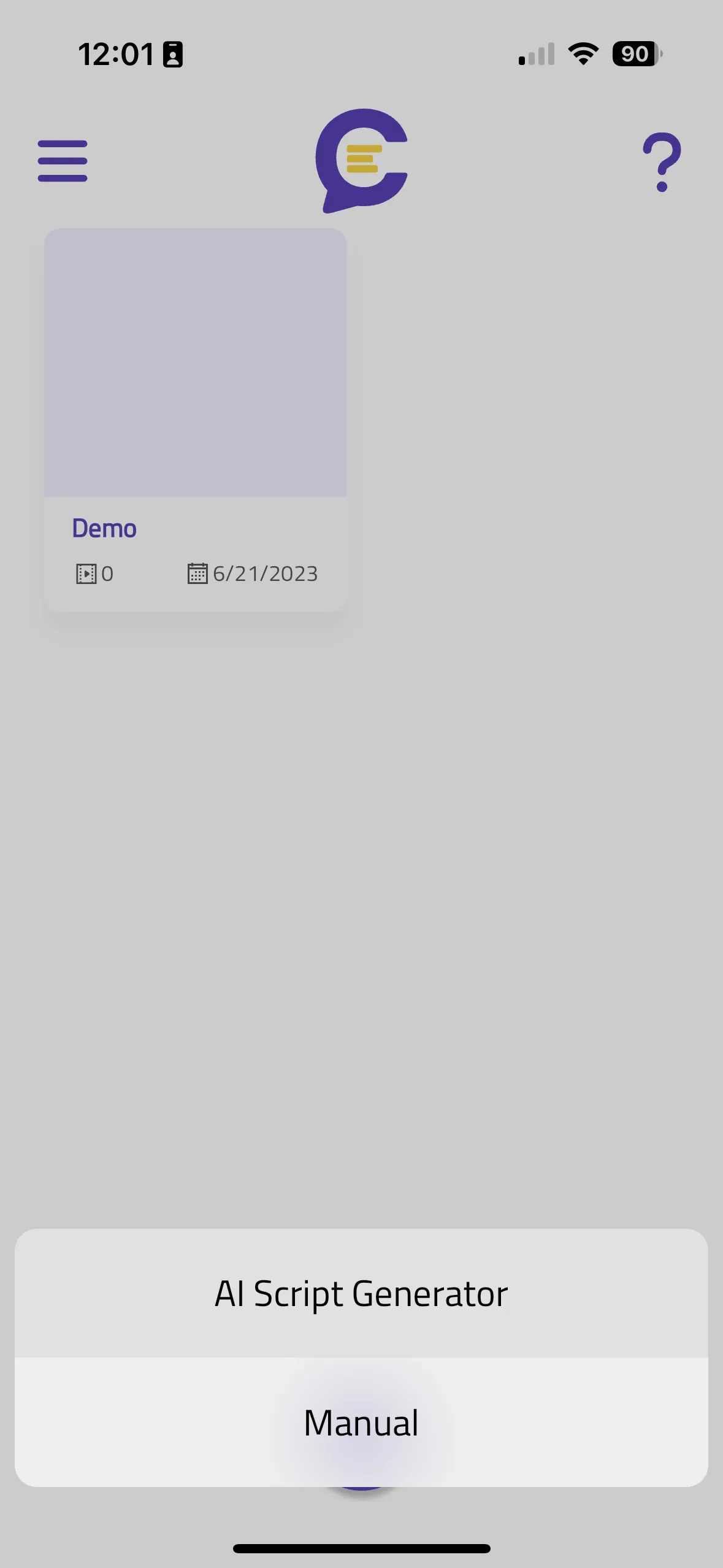
Then you can type your scripts manually or paste your text from your notes.
How to use AI script generator
First of all, open your app and on the main screen, tap the “plus” button.
You’ll see a menu with two options: AI Script Generator and Manual.
Select “AI Script Generator” and you’ll see this screen below.
Select the type of video, tone of voice and script length. Then add a description up to 500 characters like the example below.
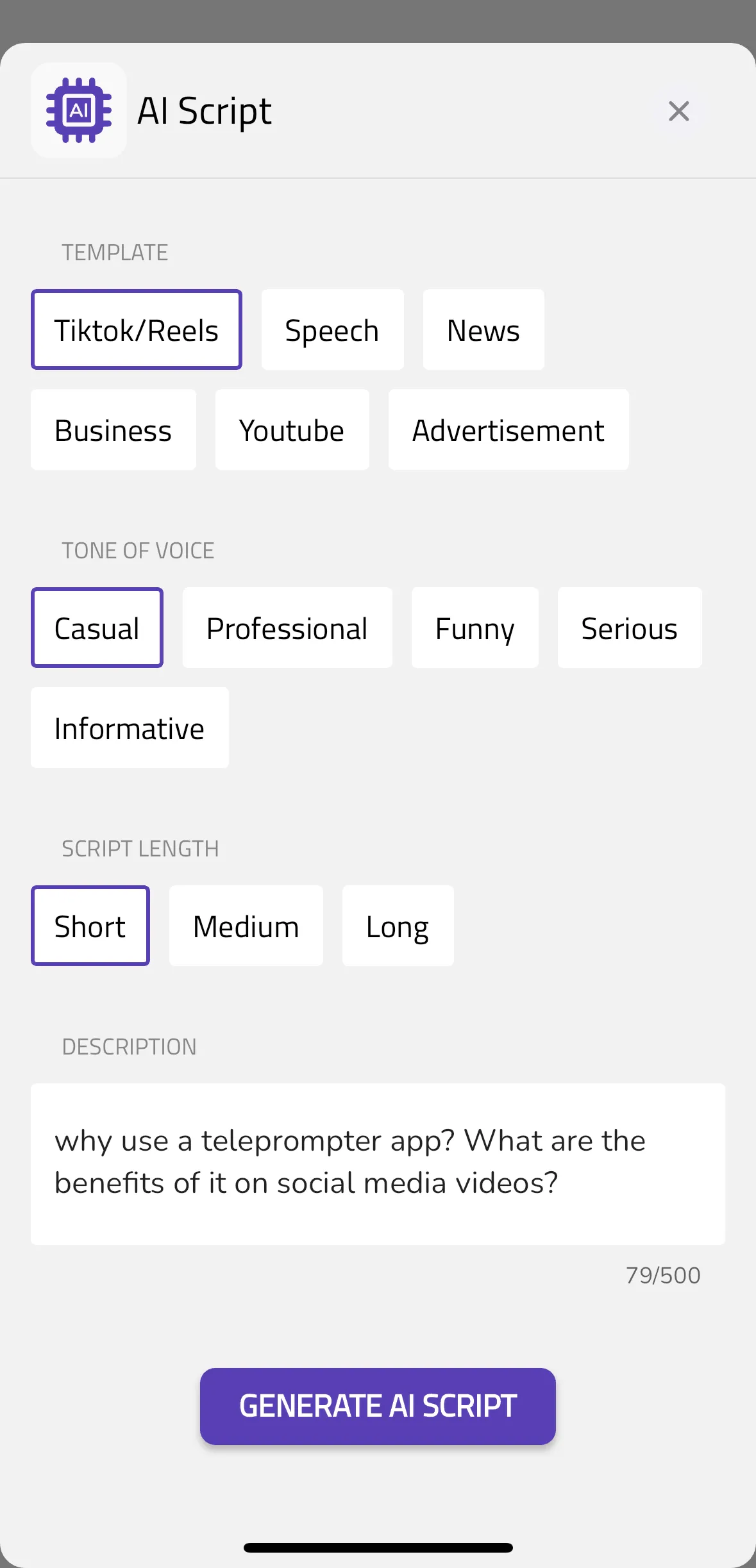
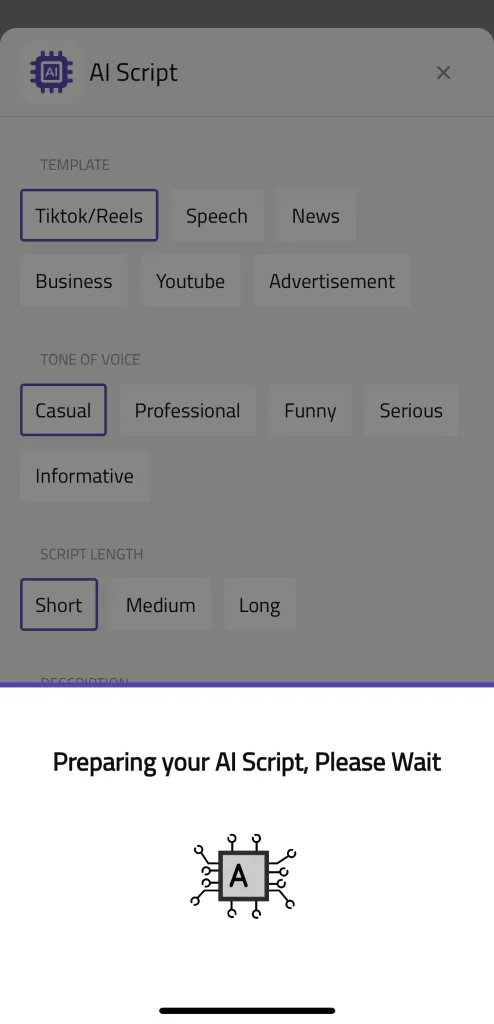
After you select “Generate AI Script”, you’ll see a gif saying “Preparing your AI Script, Please Wait.”
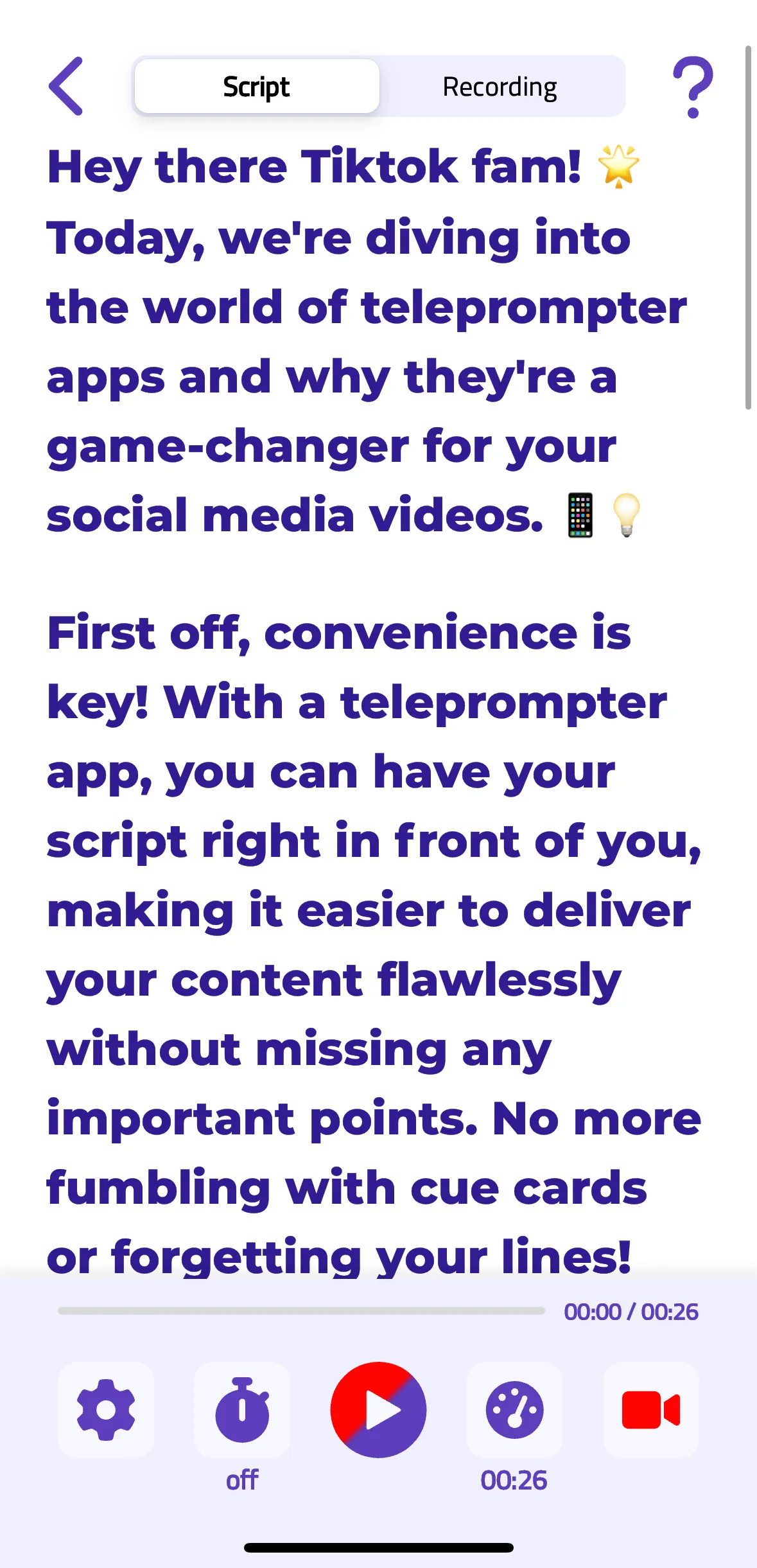
And then your script will be ready! 🎉 You can edit and customize the script as you like.
Teleprompter settings
Can I use Cuebox with non-Latin characters?
Cuebox is capable of supporting non-Latin characters, accommodating a variety of languages and writing systems, thus broadening its accessibility and usability.
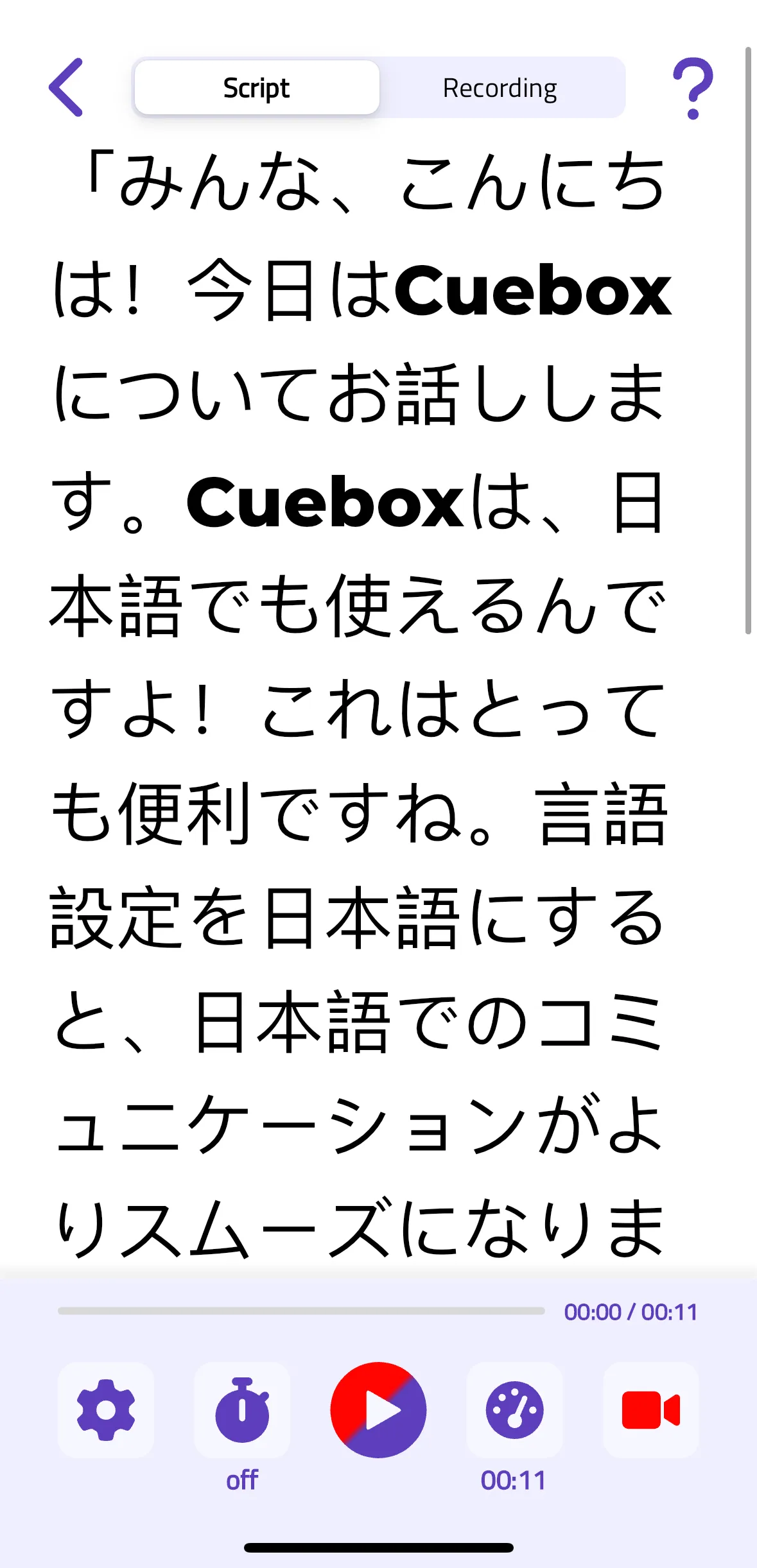
What is Scroll Mode on Settings?
Scroll Mode is a feature in Cuebox that allows you to customize how your text is displayed.
It comes with three distinct options:
Continuous: Text flows smoothly and continuously, at a constant speed. Line by Line: Your text will advance line by line, providing a structured pace. Paragraph by Paragraph: Read in larger chunks as your script advances paragraph by paragraph.
This flexibility in displaying text is designed to enhance readability based on individual preferences.
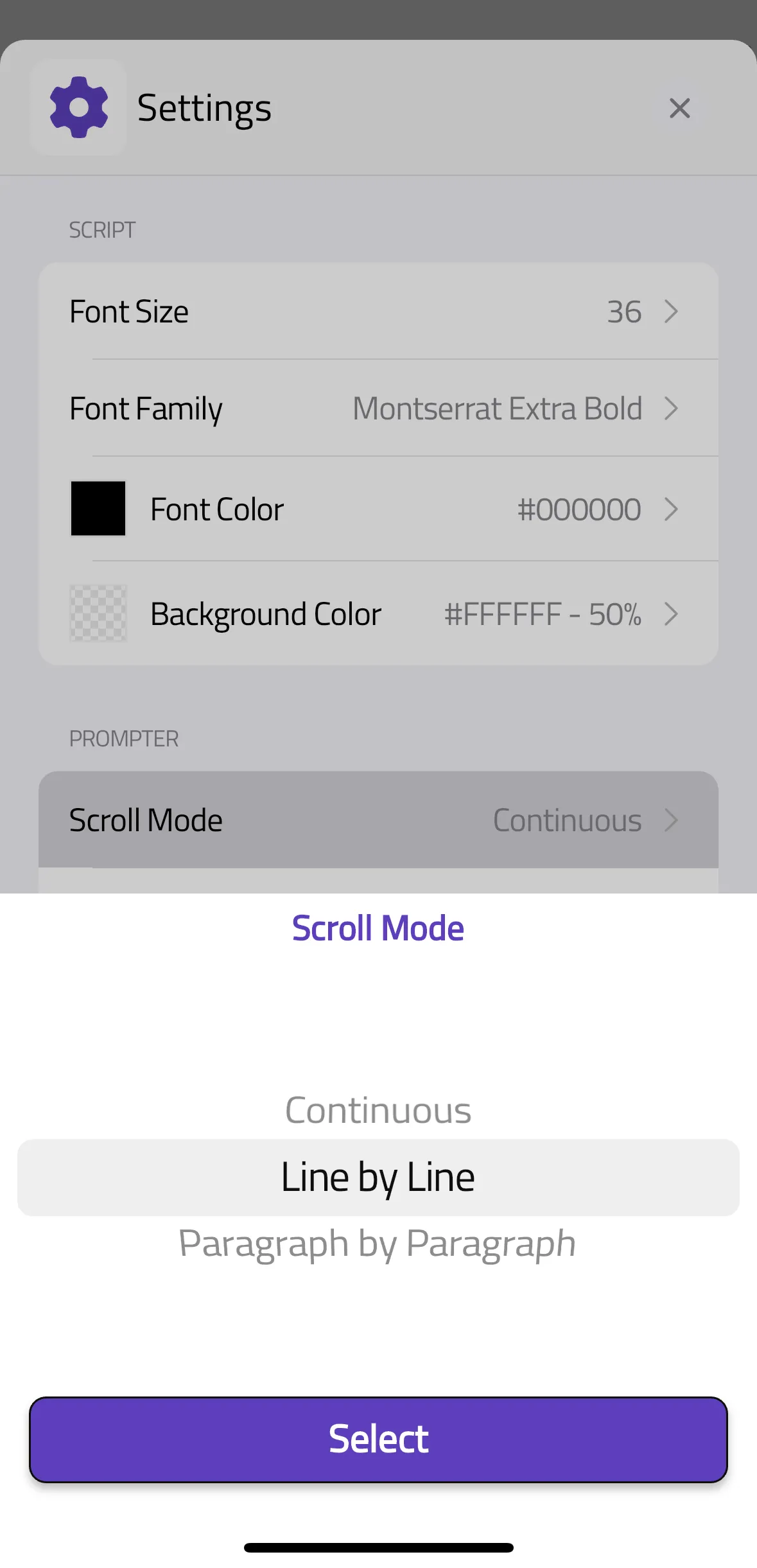
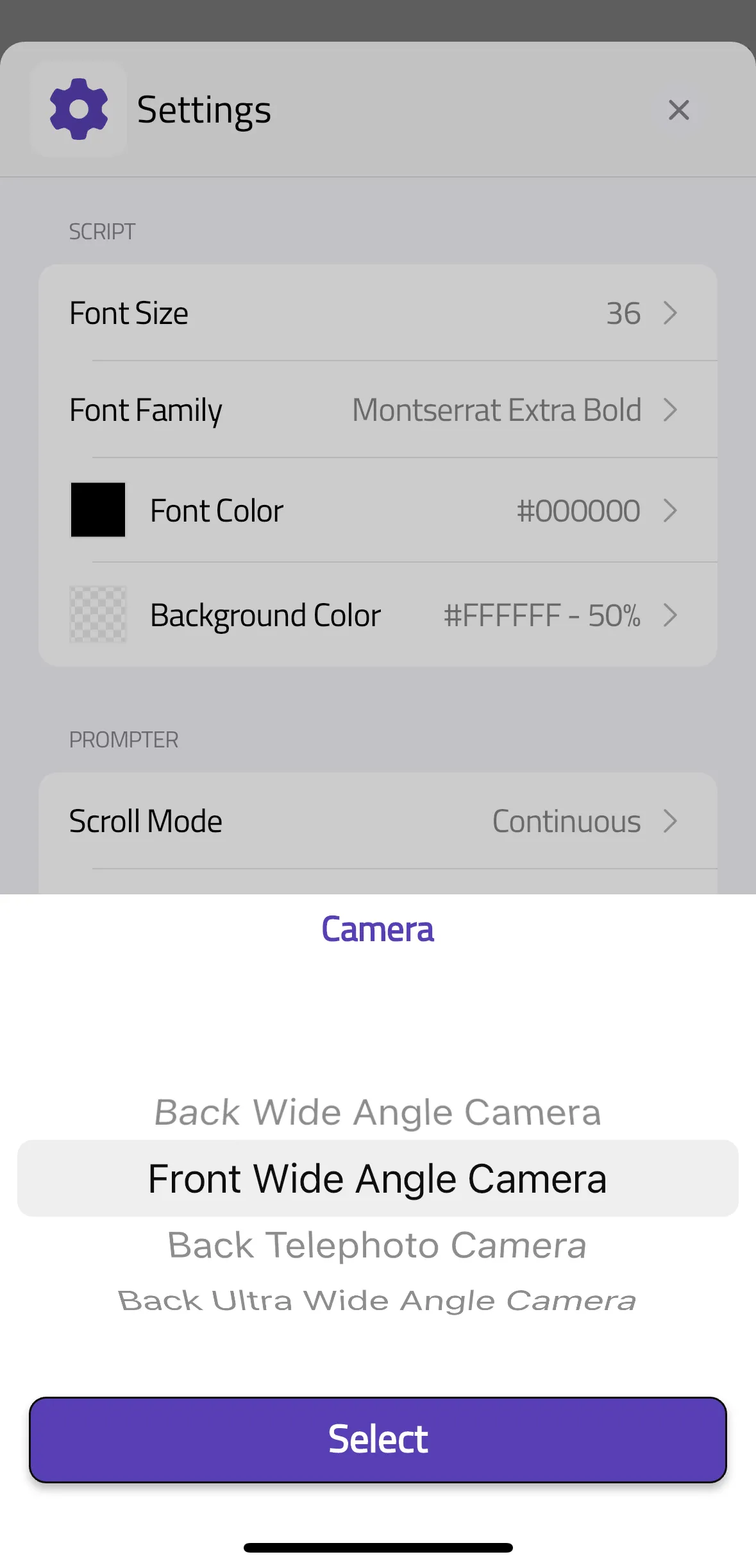
How to change the back camera to the front camera
After you are done with your script, you can set the camera back or front.
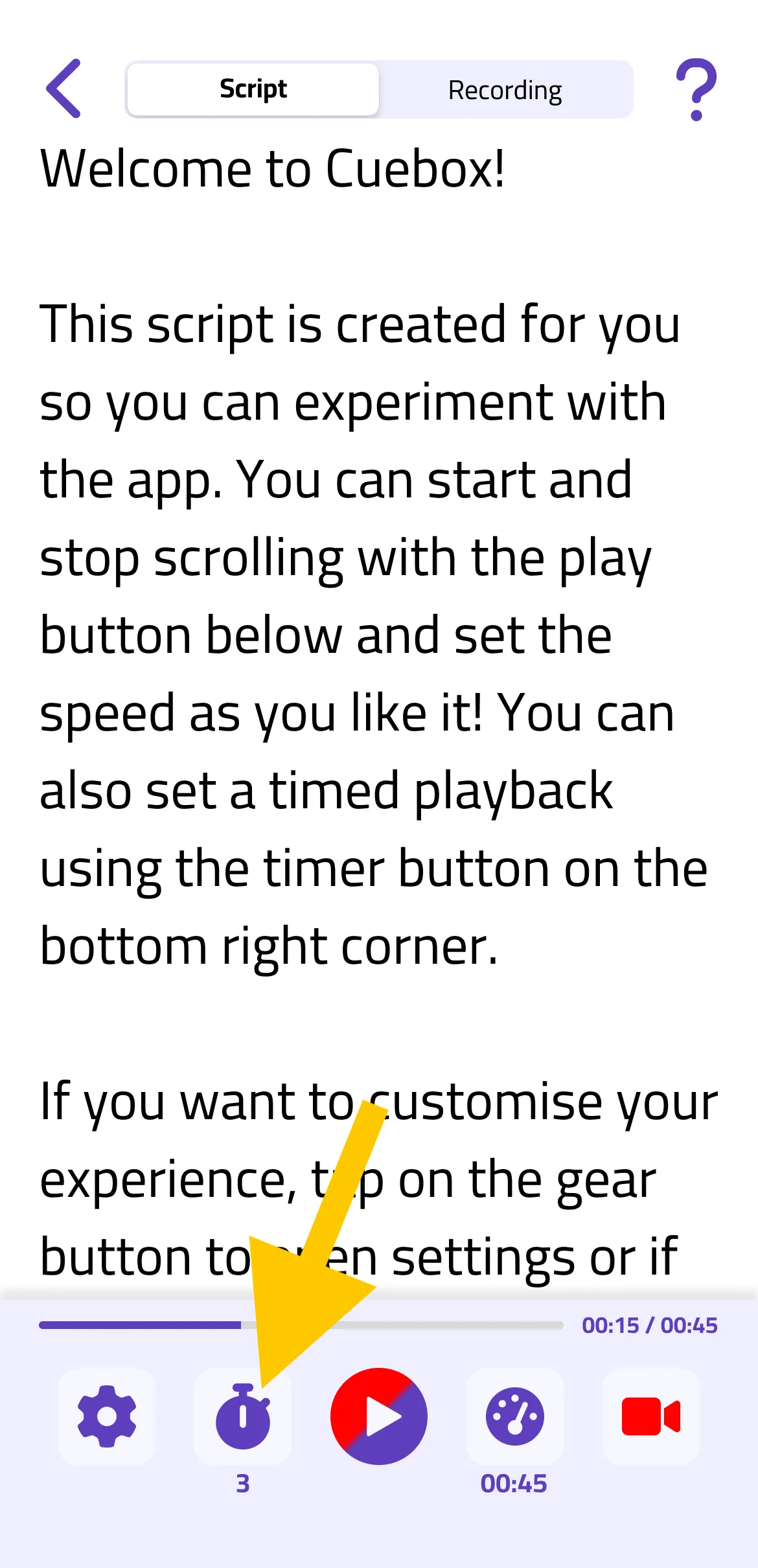
To do this, simply tap the settings button located in the bottom left corner, which is indicated by a yellow arrow.
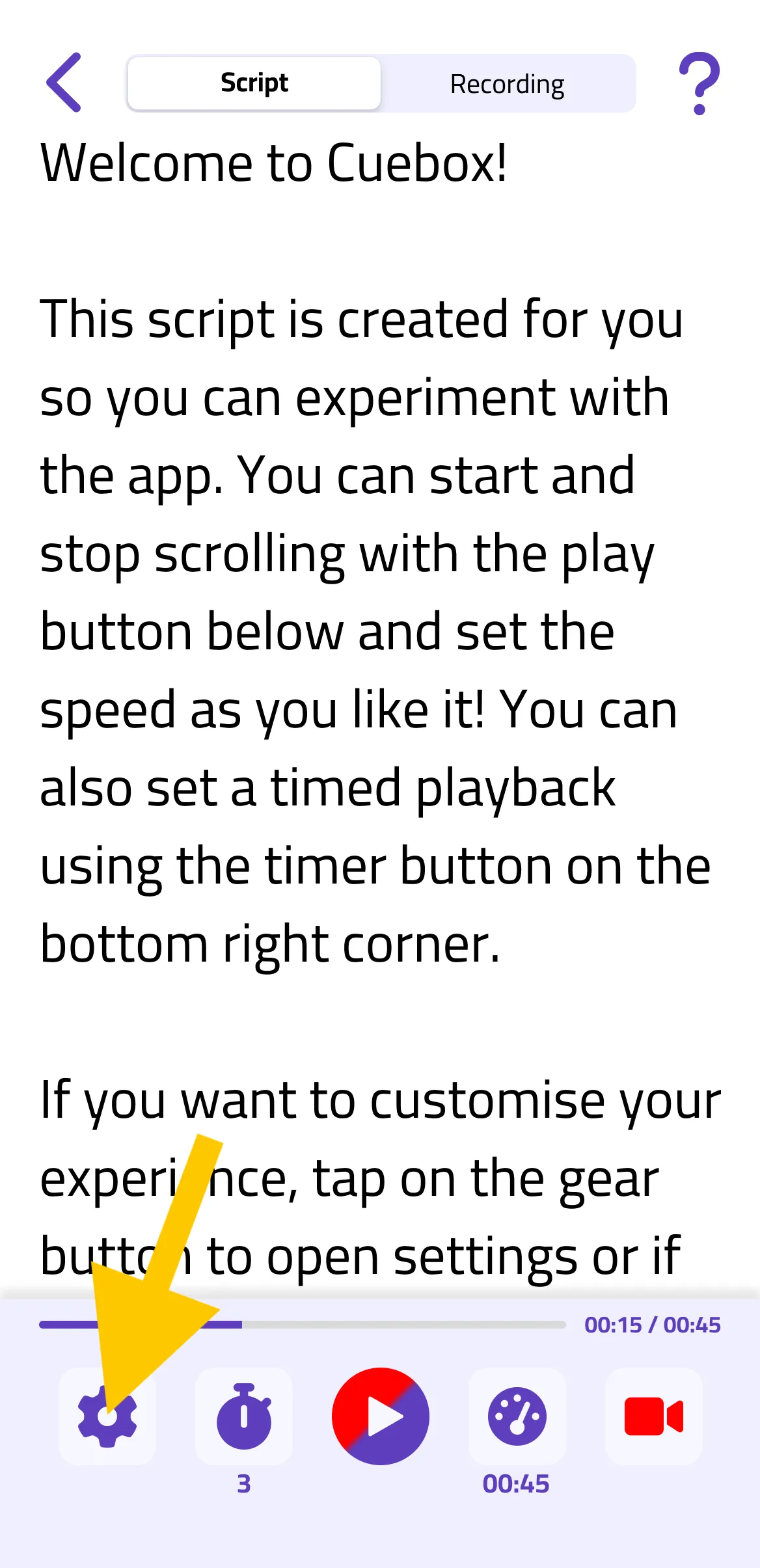
Then go to the camera settings.
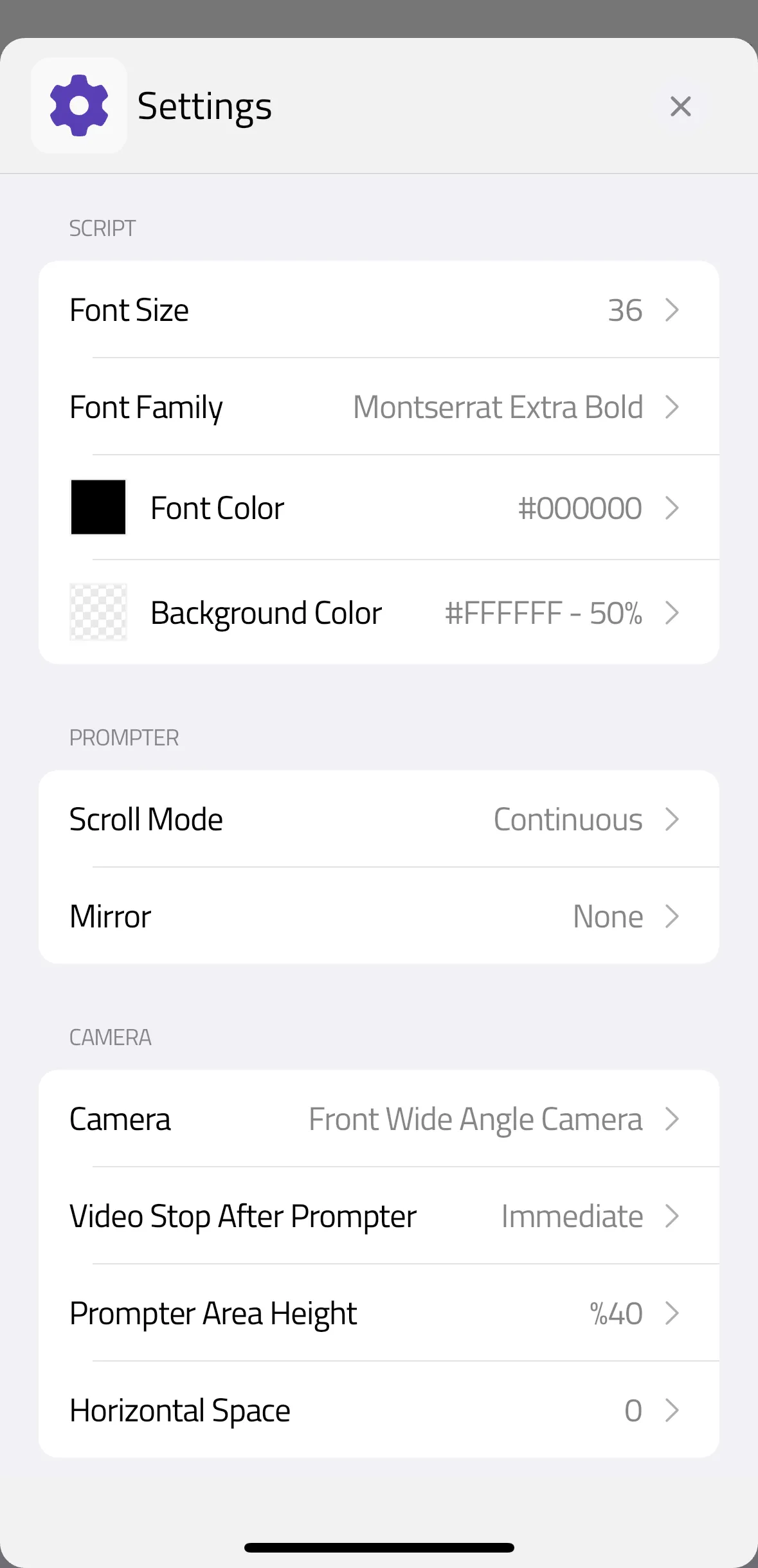
You can select from the list. You have 4 options to choose from, choose the one that suits your needs.
How to set the countdown
Cuebox offers a countdown feature to help you prepare before shooting a video. Simply tap on the countdown button to adjust the setting. You can set it to off, or choose a 3, 5, or 10-second countdown.
How to set mirroring
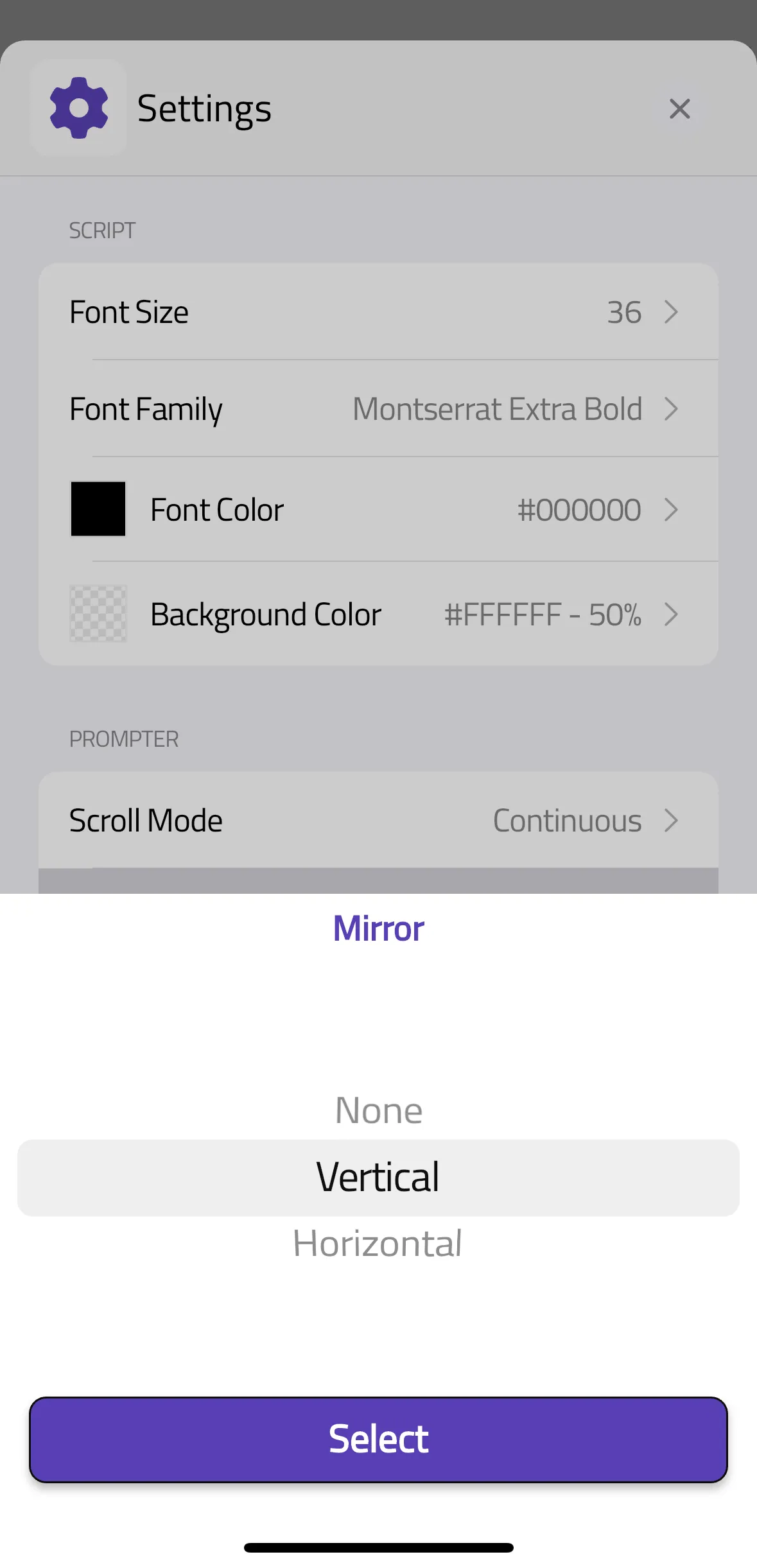
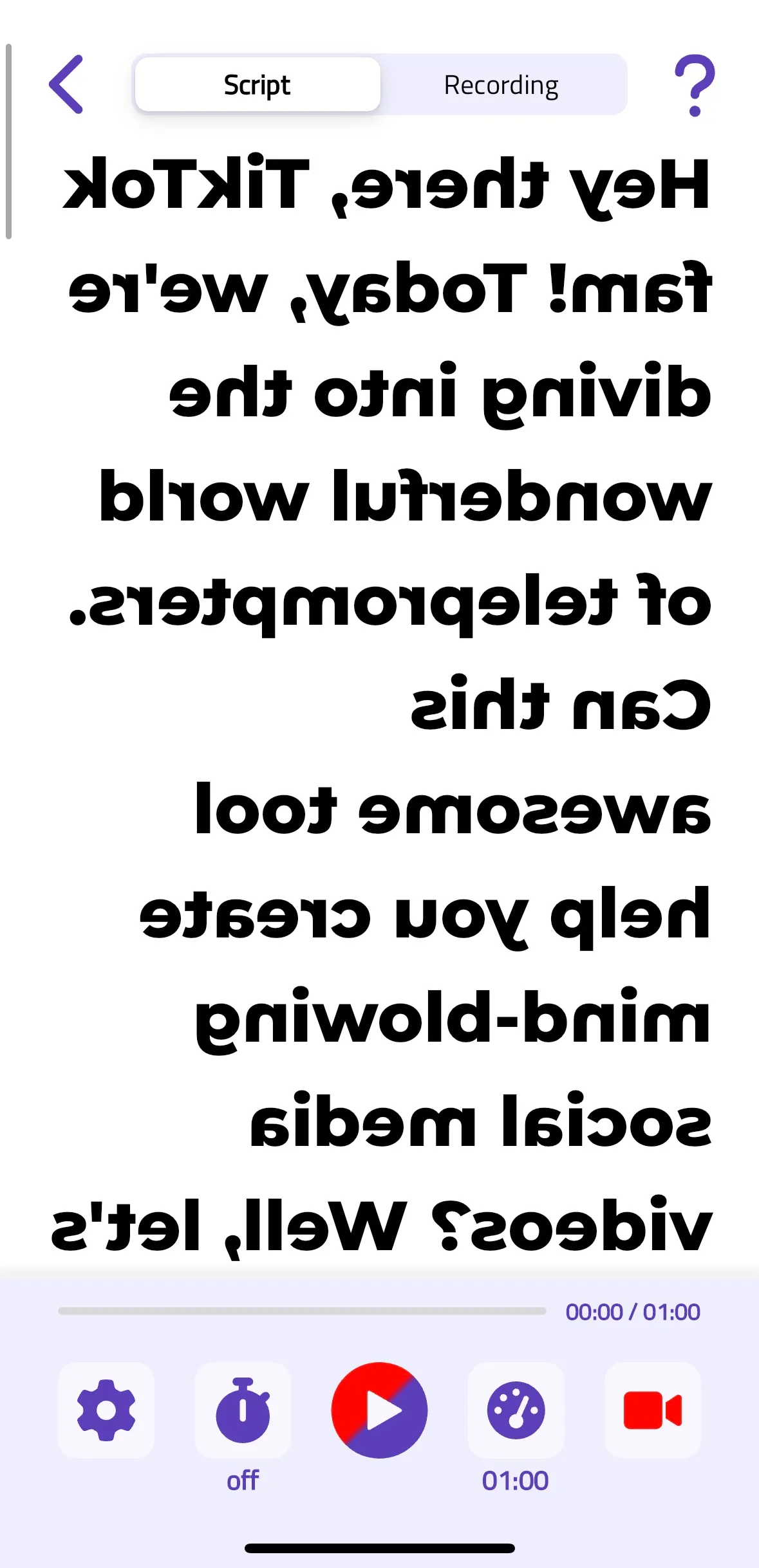
After you are done with your script, you can set up mirroring if you like.
To do this, simply tap the settings button located in the bottom left corner, which is indicated by a yellow arrow.
You can choose Vertical or Horizontal.
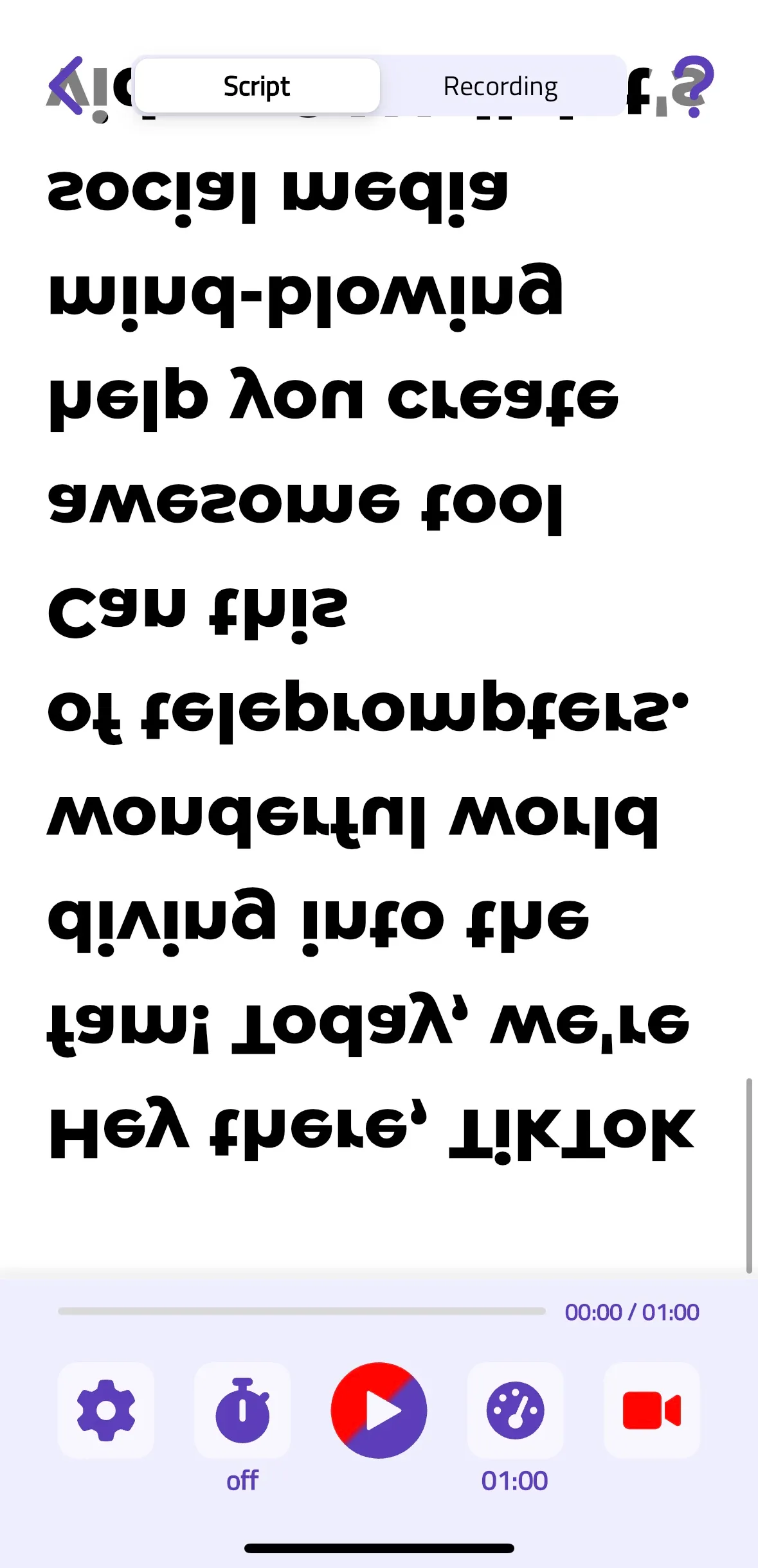
Your text will be displayed as follows:
How to customize the script
While you are writing your script or when you are done writing, you can tap on the settings button on the bottom left corner to customize the text.
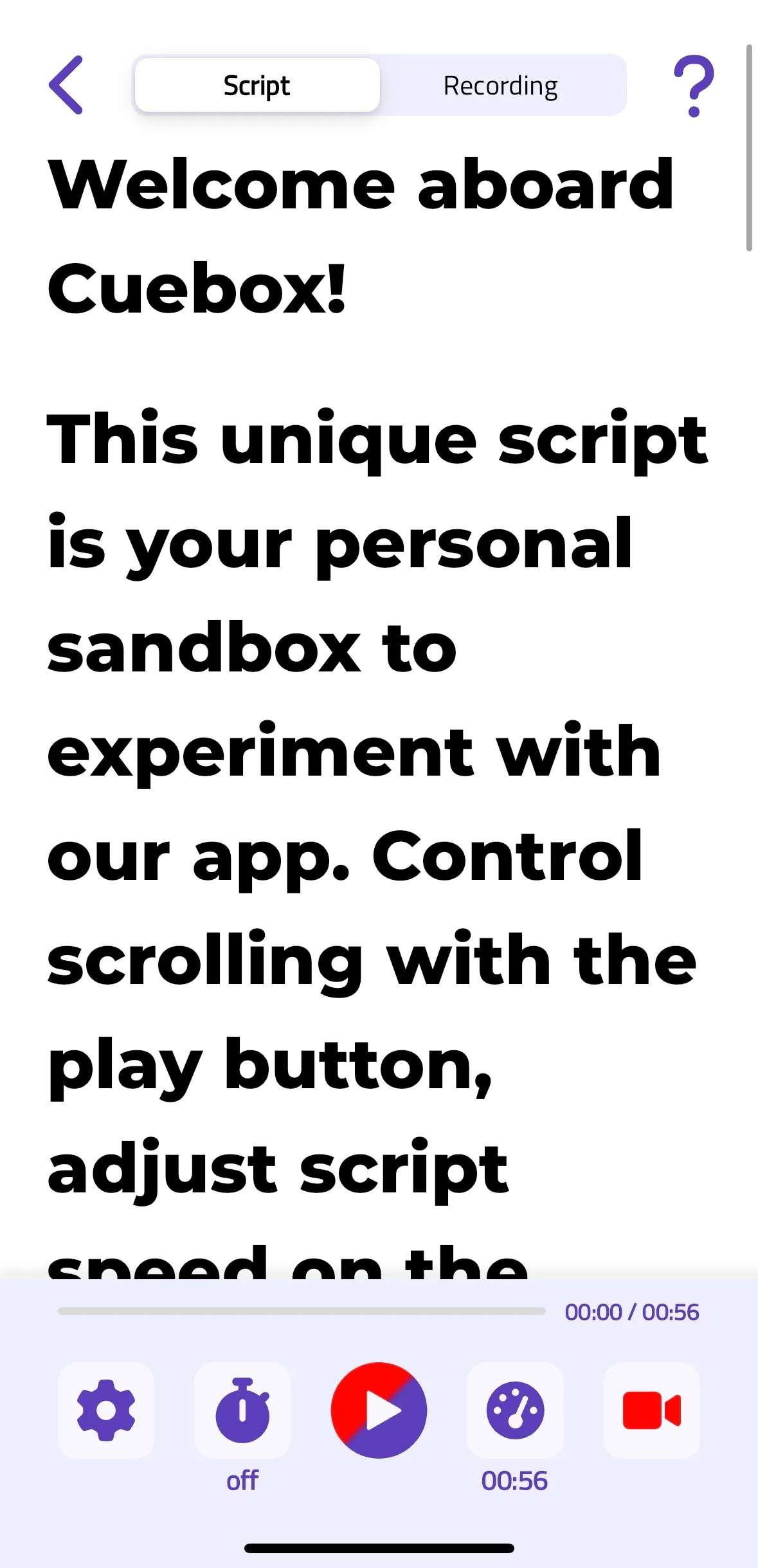
You can change font size, font, font color, background color of your script.
You can change scroll mode and mirror features of the prompter.
You can also change camera features to help you capture better videos.
Projects and recordings
How can I reach my recordings?
To access your recordings, simply tap the ‘Save’ button once you have completed a recording.
Cuebox will then automatically save the video to your phone’s photo gallery, making it easily accessible for future use.
How to adjust the video duration
After you are done with your script, you can go ahead and shoot your video.
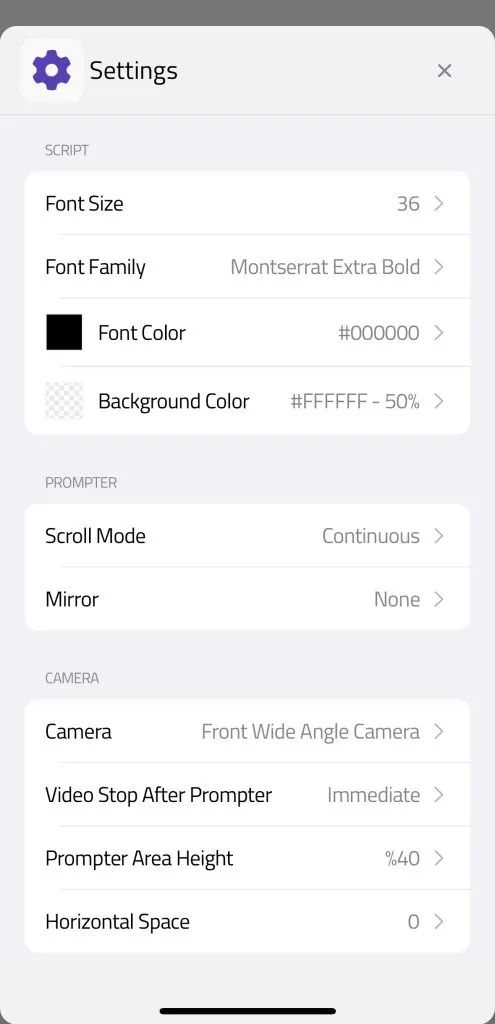
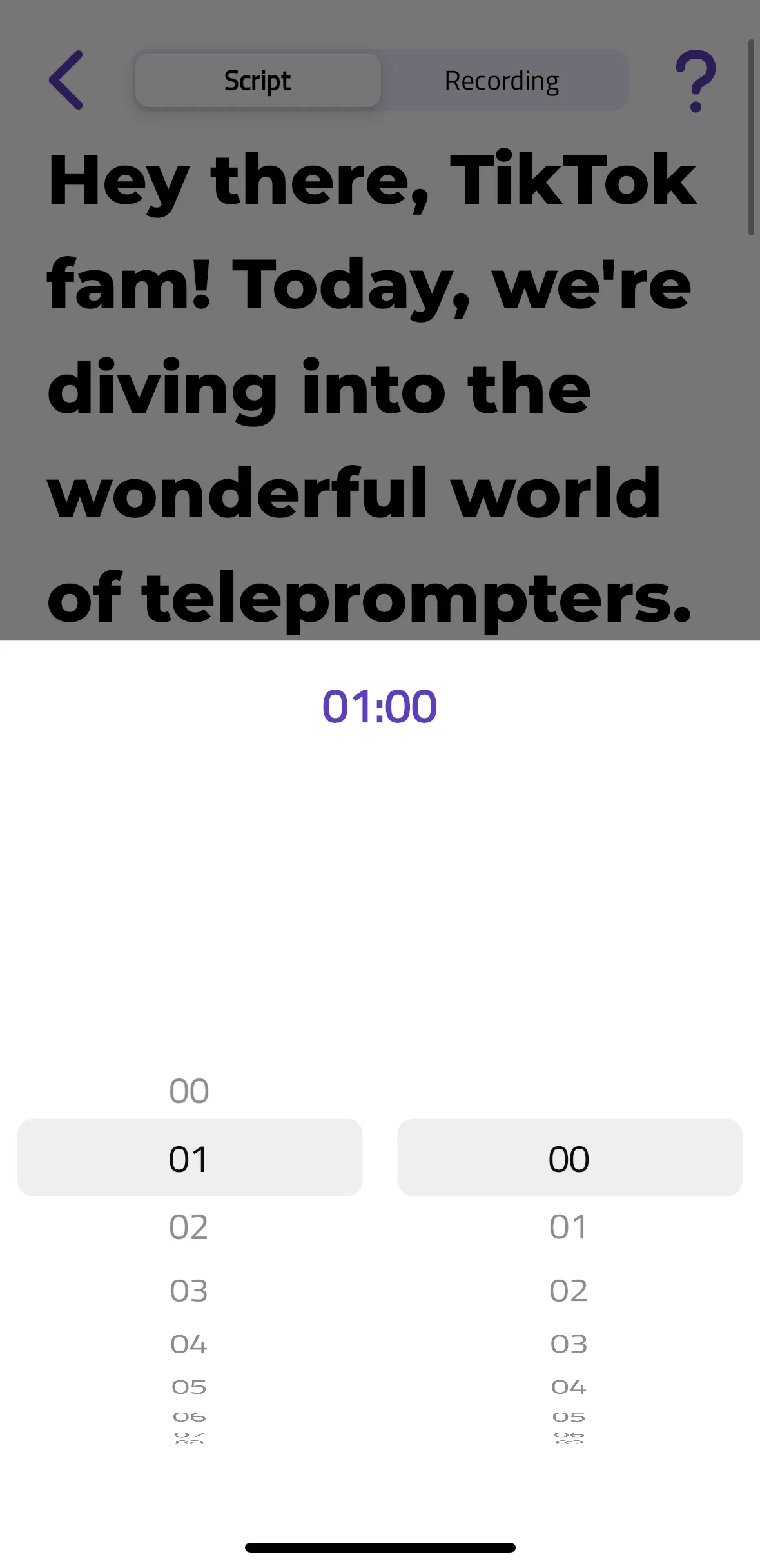
The app displays the video duration based on the current script pace. To adjust the length of your video, simply tap the button indicated by the yellow arrow.
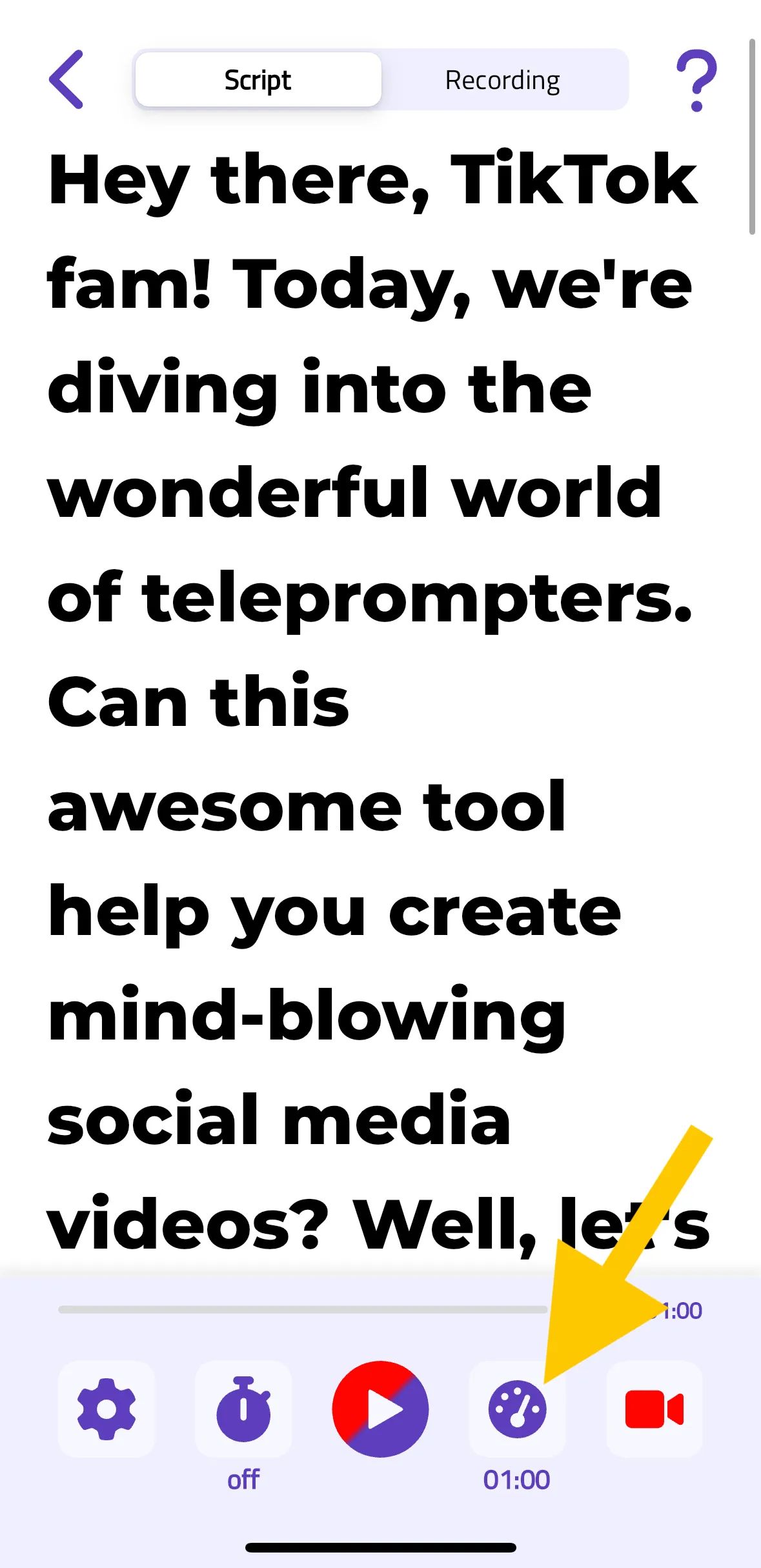
When you select that button, you’ll be able to choose the video duration in minutes and seconds. If you lengthen the duration, the script flow will be slower; if you shorten it, the script flow will be faster.
How to rename a project
First of all, open your app and on the main screen, tap and hold your project until a menu pops up.
See below:
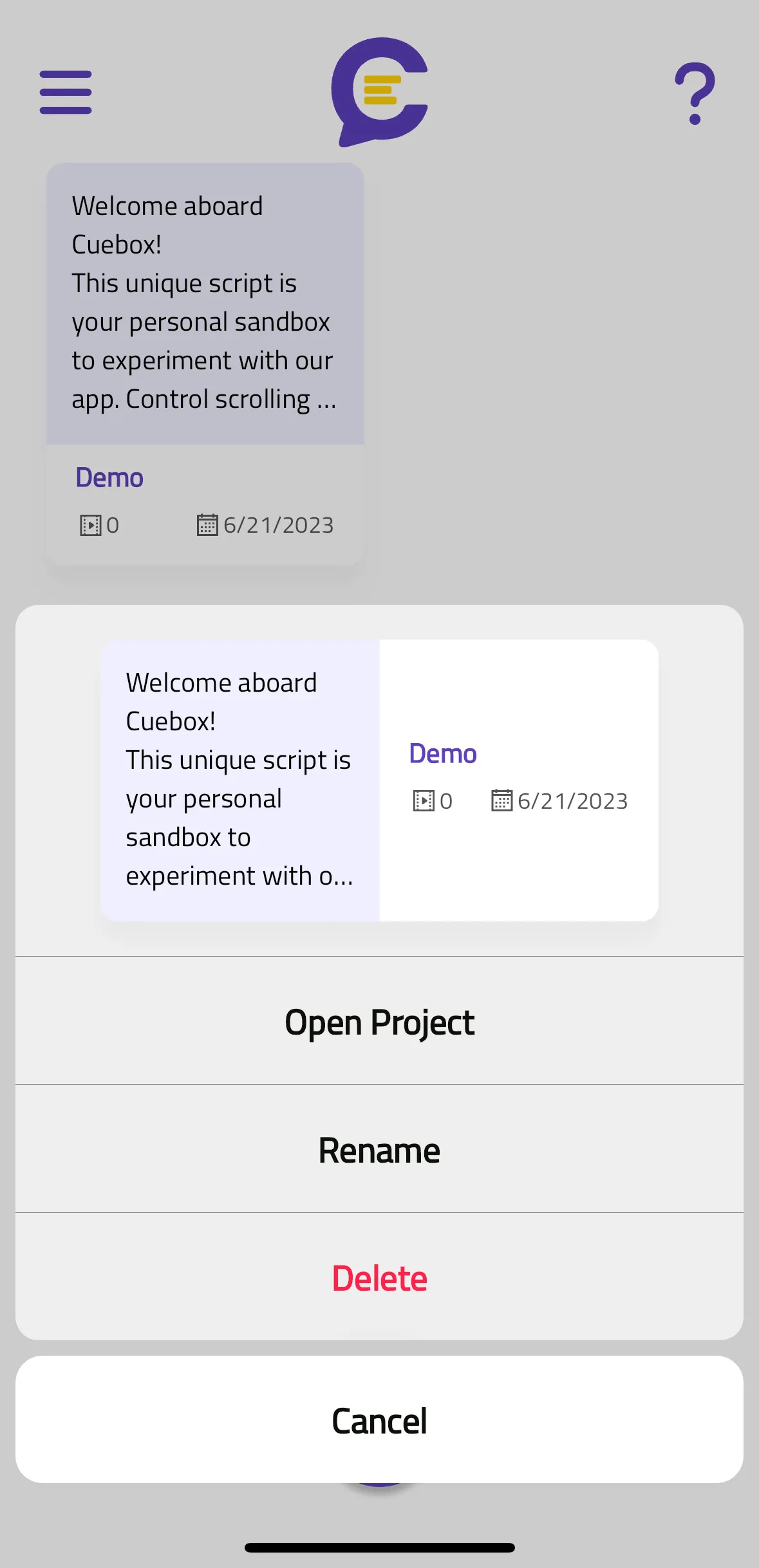
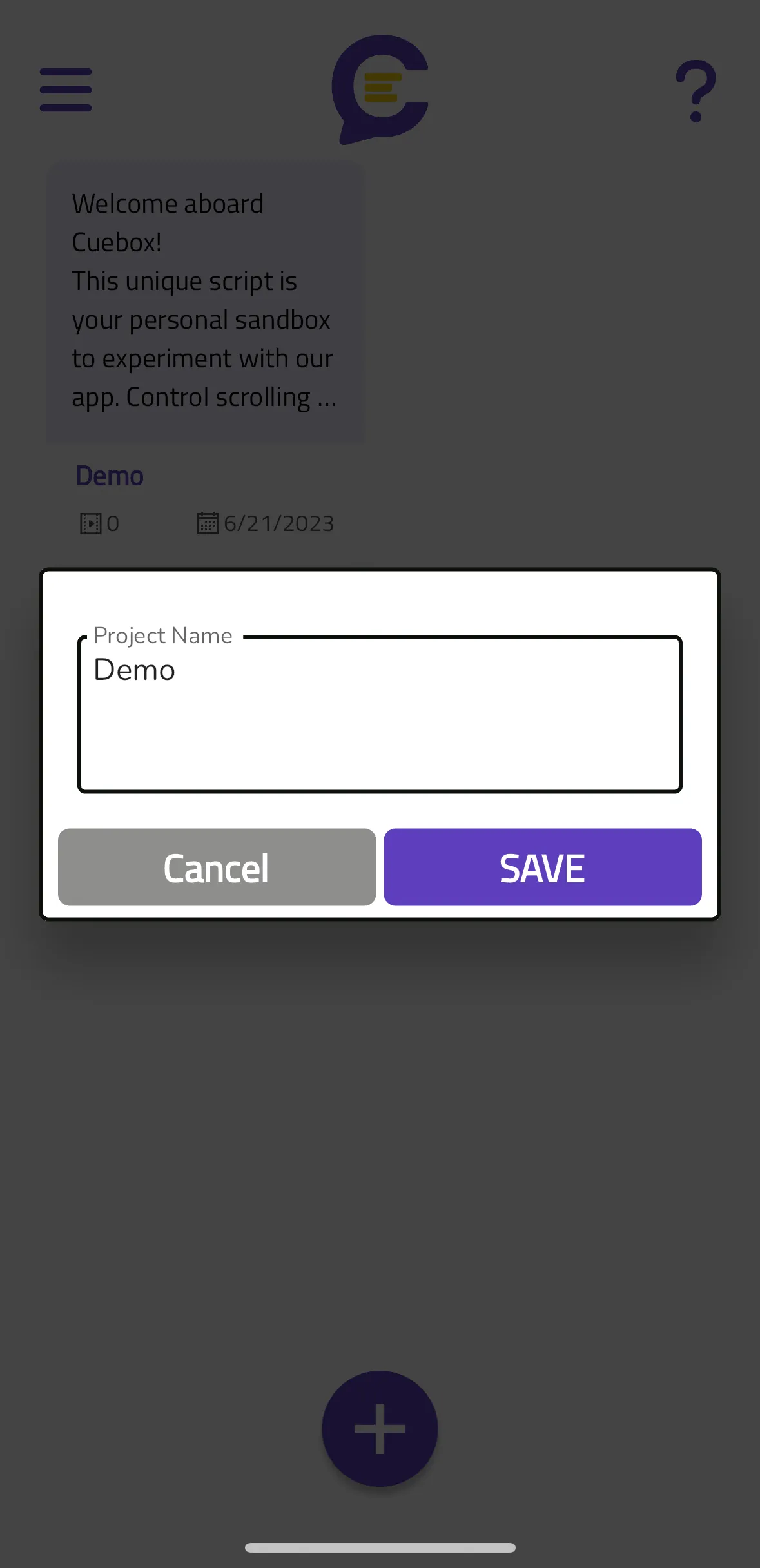
Then you can select “Rename” from the menu and you’ll see this screen below:
How to delete the project
First of all, open your app and on the main screen, tap and hold your project until a menu pops up.
See below:
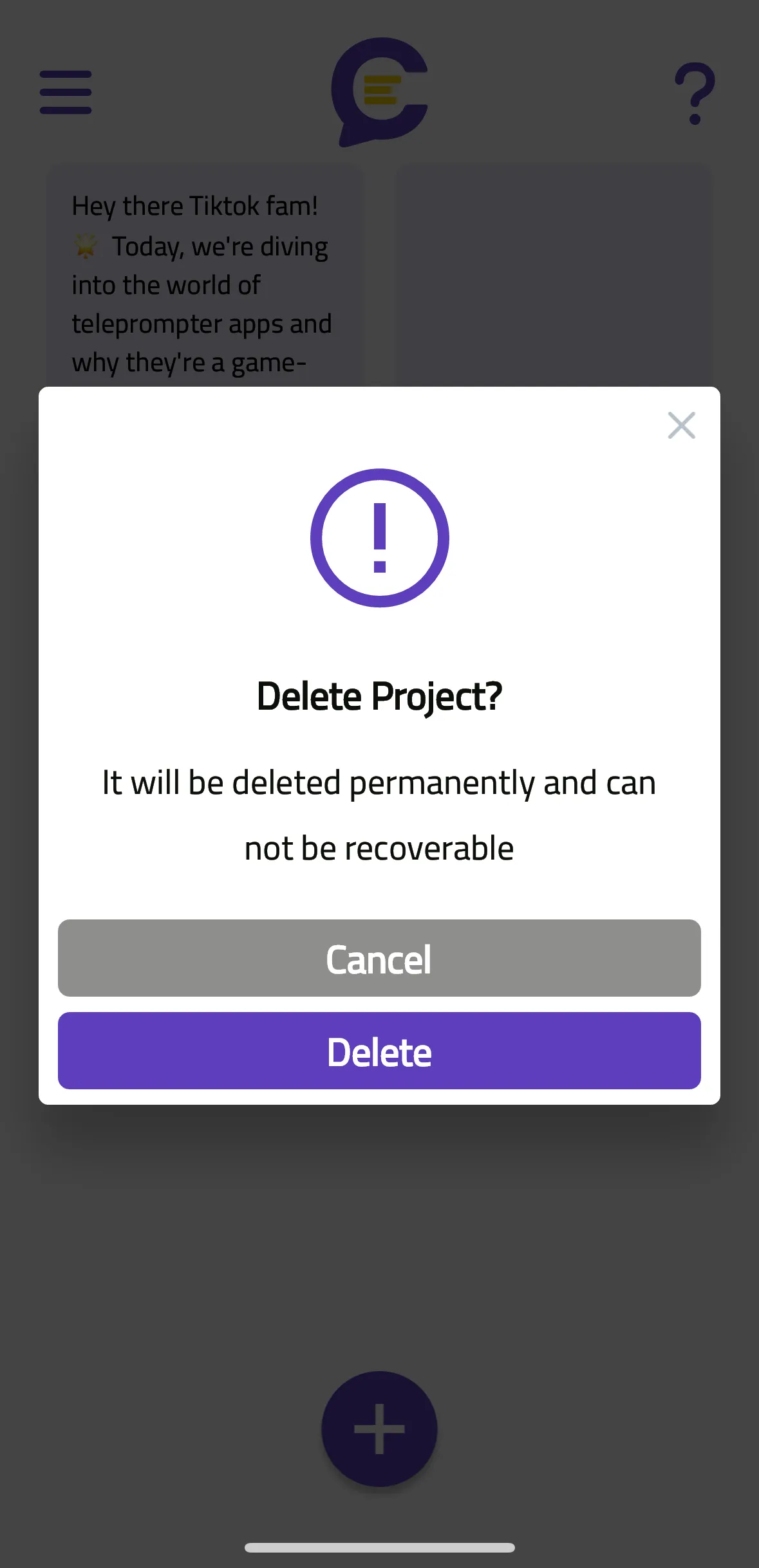
Then you can select “Delete” to delete your project. You’ll get a warning so you won’t delete it by mistake.
How to show or hide Cuebox watermark
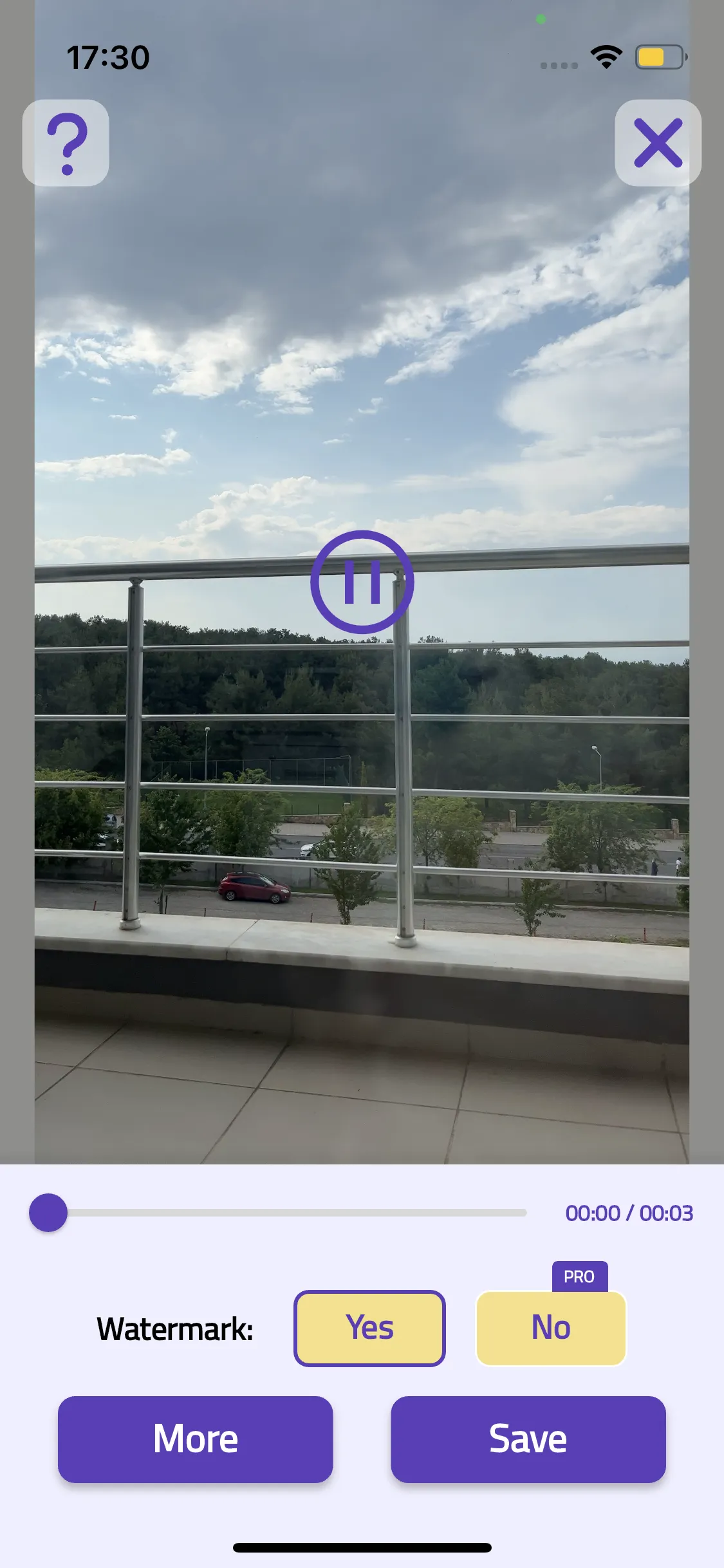
If you are a Pro user, you can remove or keep Cuebox watermark (logo) from your videos.
Before saving your video, you can select Yes or No for the Watermark option.
Privacy and security
Can anyone see my videos and scripts?
Your privacy is of utmost importance to us.
At Cuebox, we are unable to access any content on your phone, including your videos and scripts. Therefore, only you have visibility and control over who sees your content.
Subscription and payments
What should I do if I’m having payment issues?
If you’re experiencing payment issues, we recommend the following steps:
- Verify that your payment information is up to date in the respective payment system profiles – Apple or Google.
- Confirm that the card associated with your account is valid and has not expired.
- If you’re using a new payment method, you may need to call your bank for authorization.
- Last but not least, check that you have a stable internet connection before completing the transaction.
If you continue to experience problems after following these steps, please reach out to Apple Support or Google Support directly, as they handle all payment processing for Cuebox.
You can also reach us via chat support, we are always happy to help 💜
What’s included in each subscription plan?
💜 You can use AI Script Generator unlimitedly. 💜 You can create as many projects as you want. 💜 You can save your videos without Cuebox watermark.
Are there any differences between the subscription plans?
The features and privileges offered across our subscription plans are consistent.
They differ only in terms of subscription duration and the corresponding pricing.
Longer subscriptions, such as the one-year plan, offer the most value from a cost perspective.
Can I use my subscription both on my phone and tablet?
If your phone and tablet are both iOS or Android, yes you can! 🎉
In order to use your subscription on another device, you should do the following:
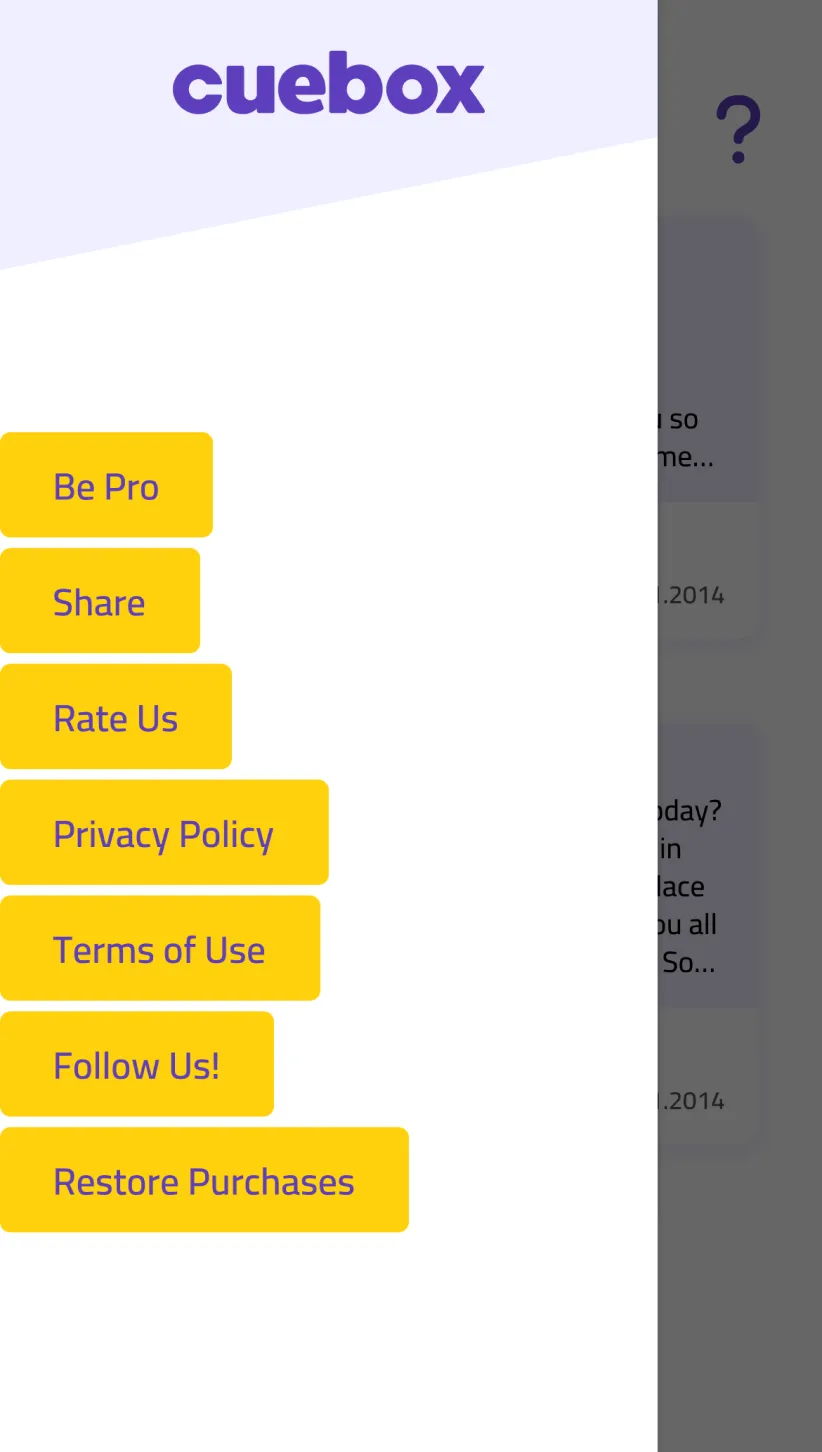
Just go to the left menu on Cuebox and select “Restore Purchases”.
However, if you have an iOS phone and Android tablet or vice versa, you cannot use the same subscription.
I’m changing my phone, how can I use Cuebox on another phone?
If you are changing your phone from iOS to iOS or Android to Android, here’s how you can do it:
Just go to the left menu and select “Restore Purchases”.
However, if you change your phone from iOS to Android or the other way around, it’s not possible to use the same subscription. Please cancel your subscription and subscribe again on your new phone.
How can I change my subscription plan?
Cuebox is not authorized to do anything about the subscriptions.
To change the subscription plan:
For iOS: Go to your phone’s homepage, go to Settings> Your Apple ID> Subscriptions and you will see Cuebox in the list, select it. You can see all the subscription plans from there and select one of them.
For Android: Open the Google Play app, tap the profile icon at the top right, tap “Payments & subscriptions” and then Subscriptions. Select Cuebox> Manage> Update.
How can I get a refund?
We are sorry to see you go 🙁
If you have any problems with the app, please reach us via support chat on the app or email: hello@cuebox.app
If you still want to get a refund, here’s the instructions:
For iOS Devices – Apple
Unfortunately, we are not authorized to give refunds, only Apple can.
Here are the instructions: https://support.apple.com/en-us/HT204084
For Android Devices – Google
If you like to get a refund from Google, here are the instructions: support.google.com
How can I unsubscribe?
Cuebox is not authorized to do anything about the cancellation of subscriptions.
To cancel the subscription:
iOS: Go to your phone’s homepage, then go to Settings> Your Apple ID> Subscriptions and you see Cuebox in the list, you can cancel the subscription from there.
For Android: Open the Google Play app. At the top right, tap the profile icon. Tap Payments & subscriptions and then Subscriptions and you see Cuebox in the list. Tap Cancel subscription.
I’m a subscribed user but it’s asking me to subscribe, what can I do?
So you’ve already paid and cannot use your Pro features?
This might happen from time to time. All you need to do is restore your purchase.
Here’s how you can do this.
Just go to the left menu on Cuebox and select “Restore Purchases”.
Support
How to report an error
If you are having problems with the app and would like to contact the support team, click the ❓ button on the top right corner. This new page will open up:
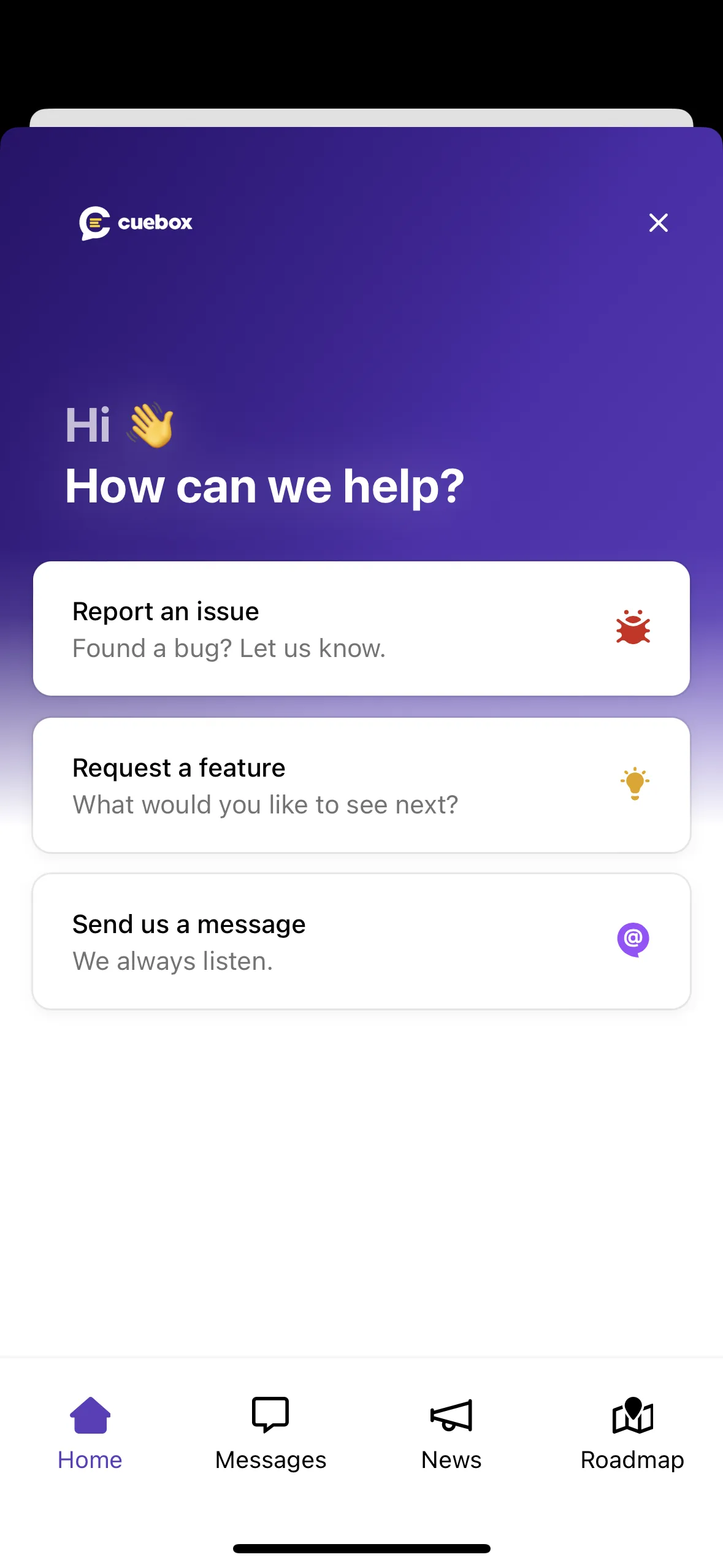
Then you can select “Report an issue” if you like to report a bug. You can also send us a message and request a feature, we always listen💜
How to reach the support team
If you are having problems with the app and would like to contact the support team, click the ❓ button on the top right corner. This new page will open up:
You can always send a message and talk to real people on chat. You can also request a feature, we always listen💜
No match. Try another word or ask us.